" "

Two Goals Quickly Visualized

I realized that I had fallen off the writing wagon. I had become a non-writer.

Two Goals Quickly Visualized

That was really bothering me.I sat down several times to write blog posts and wrote portions of them or huge rambling missives that went nowhere.Soon it became clear that I needed a goal and to visualize it. It was pretty simple really. It looks like this I wanted to make sure that I wrote blog posts and participated on Twitter. So I made a quick (ugly) chart over my done column on the board by my desk. It has the days of this week with two swim lanes - one for blogging and one for entering 3 tweets per day  into Social Flow.I then mark down how I felt about them when I was done. Overall, it was pretty good. No home runs there, but it was okay. (I’d make a big mouthed smiley for one I was really happy with).What I’m doing here is quickly visualizing, rewarding, and evaluating a goal. Since they’re daily tasks, moving the stickies would be redundant and perhaps even annoying. But setting up a rapid feedback system helps immensely. 

Sharing Your Story

Everywhere we look we’re discovering people around the world - from all ages and all walks of life -  are tailoring their Personal Kanbans to some very specific needs, and in some very unique ways.

Are you one of those people?If so, we invite you to share your experiences on the Personal Kanban website, and serve as an inspiration to the global Personal Kanban community.Are you using Personal Kanban in conjunction with an online tool like Evernote or Google Keep? Have you incorporated a calendar feature into your board? Applied a particular email filter? Used it to extend your GTD practice?Is there an online Personal Kanban tool or mobile app you’re particularly fond of? Or did you opt  for a physical board instead, preferring to use a wall or window or desktop Personal Kanban?Do you use it primarily at work and/or, are you using it at home with your family? Have you used it to track an interesting project? Tell us!These are questions that when answered, have the potential to inspire others in ways they never considered.  So share your Personal Kanban story with us. It doesn’t have to be too involved or complicated - we don’t want to break your WIP limit!  We’re looking for a quick paragraph or two describing how you’ve implemented Personal Kanban. And if you want to share pictures of your board, even better.So consider sharing your story.  We look forward to hearing from you.Thanks!Jim and Tonianne

Finding Hidden WIP

Can you find the hidden WIP in this picture?

Limiting Work in Process (WIP) is not easy.Our work is largely invisible, which means it’s hard to notice. It creeps up on us. Well, heck, it’s invisible, it just walks right up - bold and unabashed. It doesn’t have to sneak - we’re simply blind to it.Then, one day, we notice it is there.Over the last three weeks, we’ve worked with several groups that are shocked when we’ve found hidden WIP. To them, we seem like ghost hunters finding inefficiencies and overload where there was previously only air.So, how can you find hidden WIP?It’s easy: always assume it’s there.When you start from a position of knowing that there’s more WIP lurking, you examine the shadows more closely. Here’s three common shadows:Big Tickets - People are always asking about ticket sizing. If your tickets are too big they have lots of room in them. Lots of room for WIP to hide. Lots of tasks that you can start and not finish. Lots of ways for the ticket to get stuck. Ultimately, the big tickets have lots of shadows for WIP to hide. Tickets get bogged down because one or more of those hidden tasks is hard to complete. (Note to some: user stories are usually pretty big tickets).Overfocus on Team Work - Time and again we see teams limit their WIP on a team board, but overlook the individuals. So the team will have a WIP limit of 5 or 6 and be meeting that limit just fine. Upon examination, however, one or two people are involved in every ticket. Since our work is completed by people, overloading them defeats the purpose of the Personal Kanban in the first place.Self Deception - We put things on the board that we want to put on the board. Everything else ... hmm. We’ve seen software teams overloaded with unboarded support tasks because they weren’t “real work”. We’ve seen researchers overloaded with unboarded administrative tasks because they weren’t “real work.” We’ve seen people with dozens of incomplete tasks that were “too small for the board.”Tonianne and I now look for these things out of habit. We immediately look for oversized expectations, individual overload, and unreported work every time we see a board.Image from Cecil Goes Wild ... which could be used to teach kids about hidden WIP.

Finishing Feels Good

Yes, finishing feels good. When we complete tasks, we feel better than when we have a pile of incompletes just lying around. Incompletion creeps up on us, overloads us, and crushes us. The more we fail to complete our work or realize our goals, the more susceptible we are to hopelessness, doubt, and fear.

So ... completion would seem to be a pretty clear winner. So, why don’t we complete? Because we have competition for our attention. E-mail, Facebook, conversations with colleagues, and the other 25 tasks we are working on simultaneously are constantly competing for our focus. (Even now, I looked up, my Facebook browser tab says there are 2 replies there. I started to move my cursor up to check on them and said, .... hey, you’re writing a blog post! Get that cursor back down there...)

Neuroscience has found that when we finish tasks, we get a dopamine rush. We actually do feel better. However, interruptions trick the brain. They can be like instant gratification that gives us little dopamine rushes. We find ourselves incurring more and more distractions that, like any indulgence, feel good at the time and leave us feeling empty later on.

The tricky bit here is we no longer have space as individuals to concentrate. Whether we are at the office or at home, our focus is impaired by these constant interruptions. We cannot focus and complete. This costs us, our companies, and our families every second of every day.In order to complete, we need some help. We need something to ground us, something to focus us, and something to propel us.

Once we have these elements, projects at work become easier, communication becomes smoother, and motivation is easily found. The key here is not to have that help seem like the solution. The help here is to find our own ways of working.

We have discovered though, that a few simple tools have helped people and organizations craft their own ways of working.

Tool 1: Visualize Your Work - Creating a Personal Kanban immediately lets you and your colleagues know what you are doing now, what you have done, and what is coming up next. That grounds your work in a tangible system that constantly reminds you of what needs to be completed.

Tool 2: Limiting Work-in-Process - Our distractions create work overloads. We take on too much work and then have to manage all those tasks in-flight. Limiting our active tasks as individuals or as work teams is vital for completion.

Tool 3: An Eye for Improvement - In order to really improve how we work, we need to actually understand what improvement looks like and how to achieve it. In Lean, this is called “Kaizen” (Continuous small positive changes).We don’t want improvement like “Starting tomorrow I will do everything exactly right,” because large unrealistic change is unrealistic. Learning, however, to take on small improvements makes all the difference.

Potent Combination

Our goal here is to understand our work, do just enough to get quality work completed, and always be looking for ways to make work better / more enjoyable / etc.

Learning More ....

Reading: Doing a search on the Personal Kanban site for “Visualize Work”, “Limit WIP”, and “Improvement” will give you some food for thought.Workshops: In March of 2014, I’m going to be teaching a few workshops on exactly this combination with Kaizen expert Mark Graban in Phoenix (Mar 10) and San Antonio (Mar 12).  We did one class in Seattle last year that went so well that this year we’re doing two!Conversation: We’ll be hosting a 2 day conversation on this February 19 / 20in Seattle called Kaizen Camp. 

Killing Email Interruptions: Personal Kanban using LeanKit, Gmail, and Zapier

Quick intro from Jim Benson:

We've asked Chris Hefley from Leankit to write a series of posts showing how to integrate tools many of us use everyday with our Personal Kanban. These are fairly technical posts, but also very powerful ones.

In this first post, Chris mentions that his aim is to keep his inbox at zero by taking action items and moving them directly to his Personal Kanban. Tonianne and I have also noticed that we also tend to act on emails the moment they arrive. This means that we allow email to interrupt our flow of work - then we get to the end of the day and are disappointed by how we let those interruptions derail our day.

Chris lays out a simple mechanism to move emails into your Leankit Personal Kanban that can both clean out your inbox and give some of those interruptions their proper priority. Also, I've turned Chris' post into a video which is at the bottom.

Take it away, Chris

-----------

I aspire to keep my inbox at zero. About once every couple of weeks, I actually get there. I’ve got several tools that I use to help me with that, including moving emails to my Personal Kanban board in LeanKit.

LeanKit has a connector available for Zapier, a cloud based integration hub. Zapier provides hundreds more connectors with other applications, which makes it very easy to connect LeanKit with Gmail, ZenDesk, BugZilla, BaseCamp, and many more.In this article, I’ll show you how to set up a “Zap” to create a LeanKit card based on an email in Gmail, complete with a link back to the original email, so that you can get that “to do” item onto your Kanban board and out of your inbox.First, you’ll need to go to Zapier.com and create an account. There’s a free account that should work just fine, and if you need more integrations or faster synchronization you can upgrade later.Once you’ve created your account, you’ll be asked to create your first “Zap”, and presented with the screen below:

Integrating Zapier with LeanKit

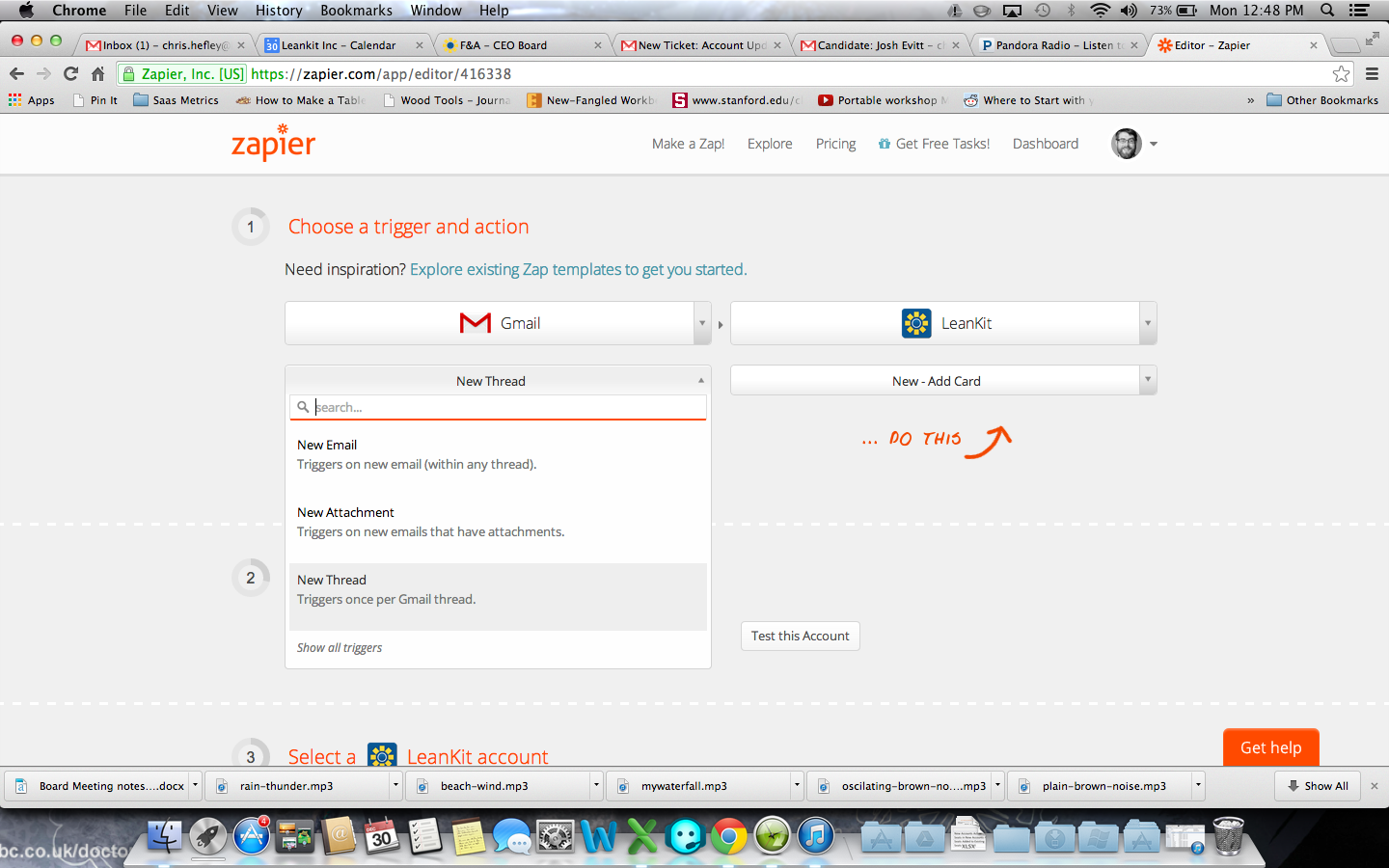
On the Trigger (left) side, choose Gmail, and choose “New Thread”.

Choosing Gmail and a New Thread

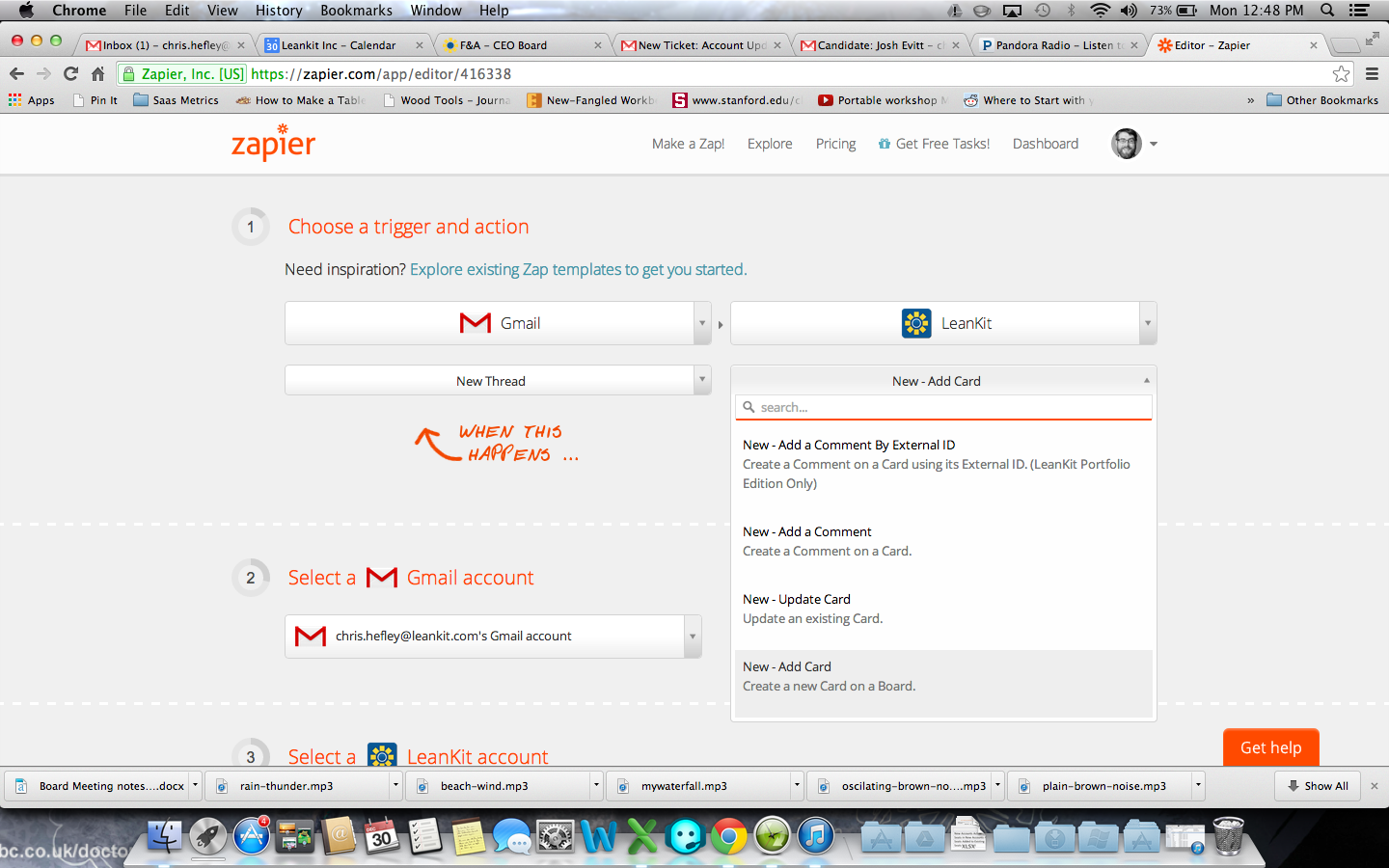
On the Action side (right side) choose LeanKit and “New-Add Card” for the action.So that when a new Thread is created in Gmail that fits the criteria we will add later, it will create a matching card in LeanKit.

Adding LeanKit

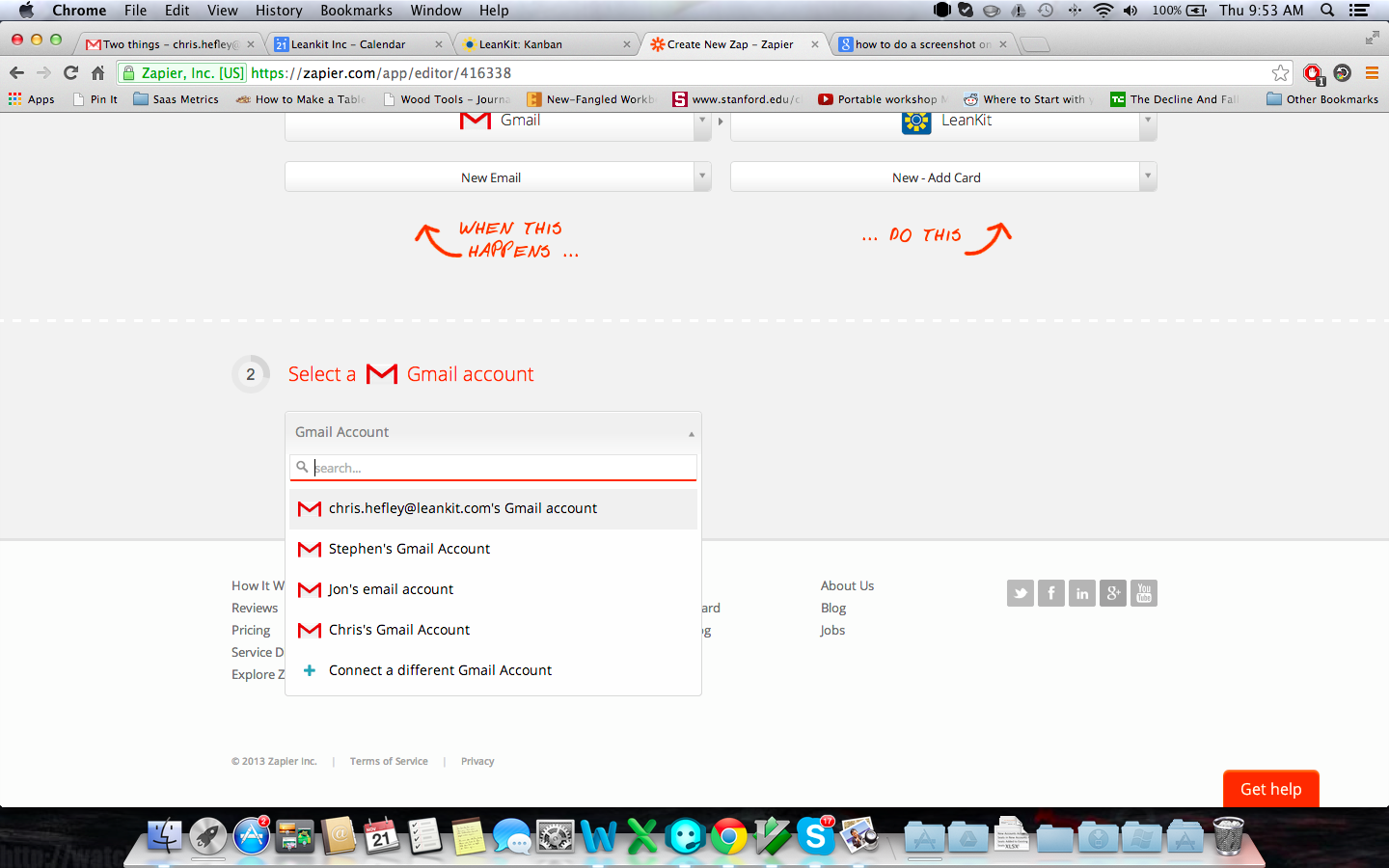
Follow the steps in Zapier to set up your Gmail account:

Selecting an Email Account

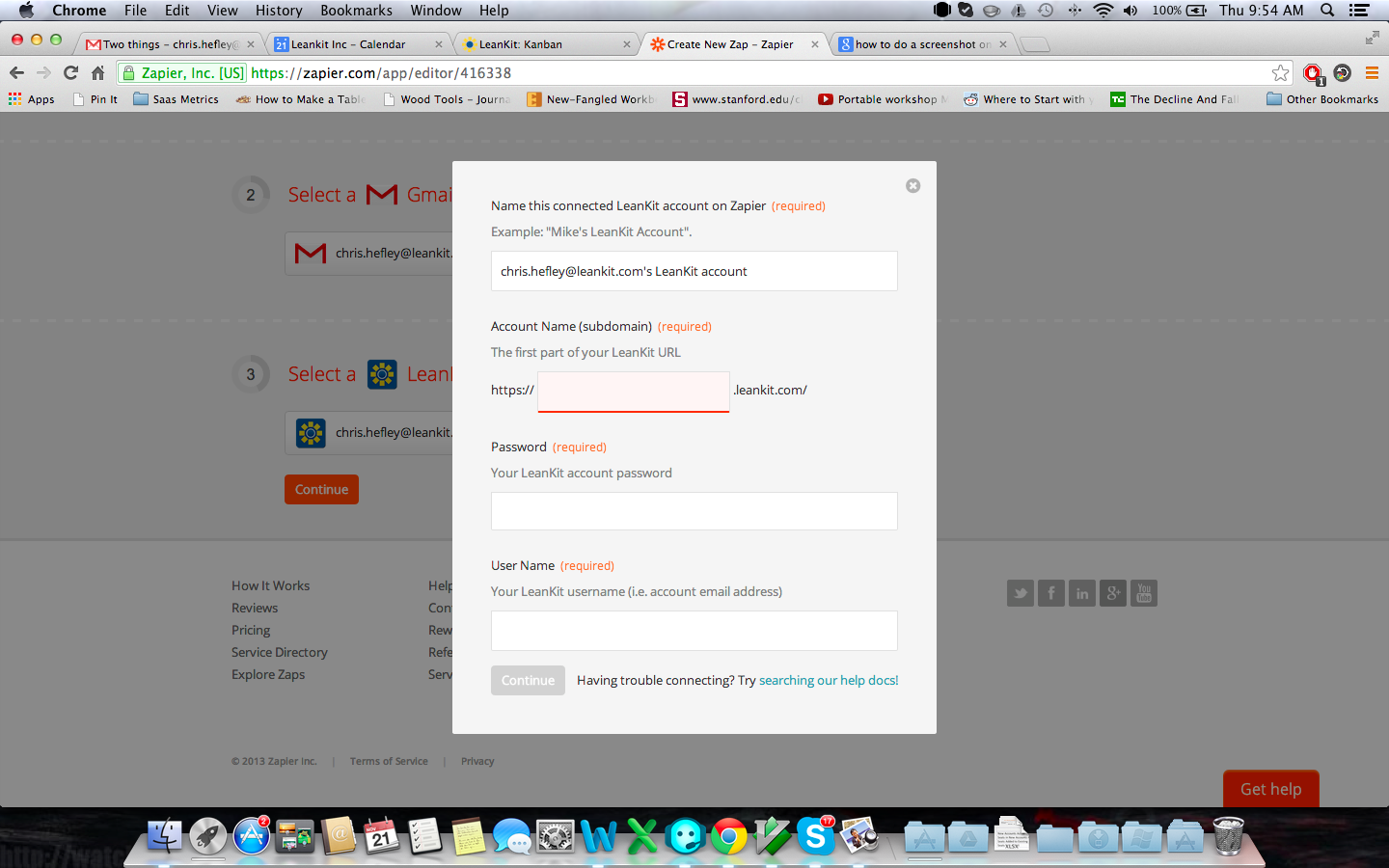
…and your LeanKit account.

Conecting LeanKit to Zapier

Now, in a separate browser tab, go into your gmail account, open an email, and create a Label called “lk” (or something similar) for that email. (Help for how to create a label in Gmail: https://support.google.com/mail/answer/118708?hl=en)

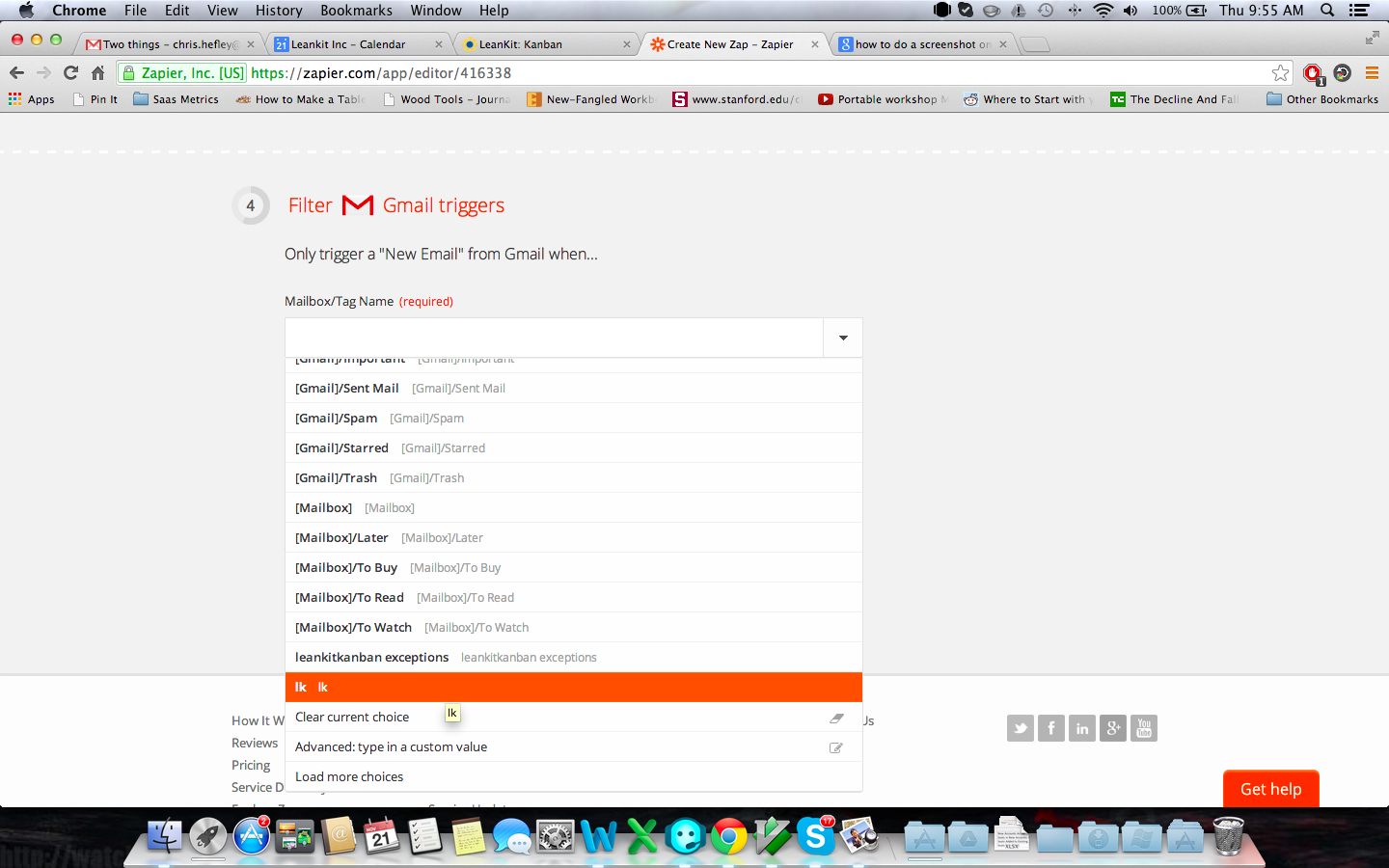
Back in Zapier, in the filter for your Gmail Trigger, choose the “lk” label you created in the previous step (it could take a few minutes for the label to show up after you’ve created it. If you don’t see it after a few minutes, try saving your “Zap” incomplete, and then coming back to this step.)

Choosing Triggers

In Zapier, Choose the LeanKit board you’d like to add cards to. This will allow you to select from any board in your LeanKit account (that you have access to with your login).

Choosing a LeanKit Board

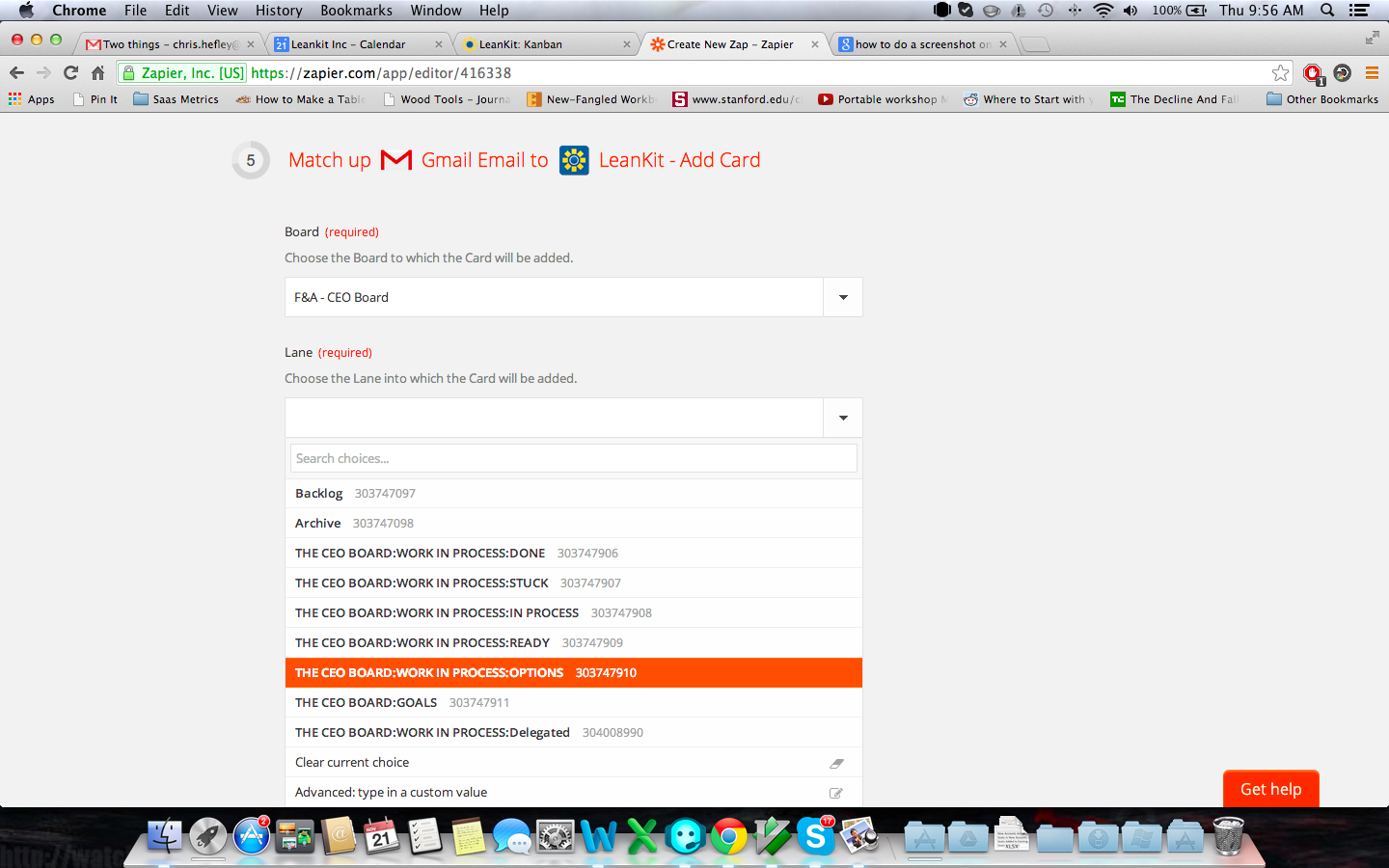
After selecting the Board, you’ll be able to select the lane you want new cards added to, and the Card Type you want for your new cards.

Selecting the LeanKit Lane

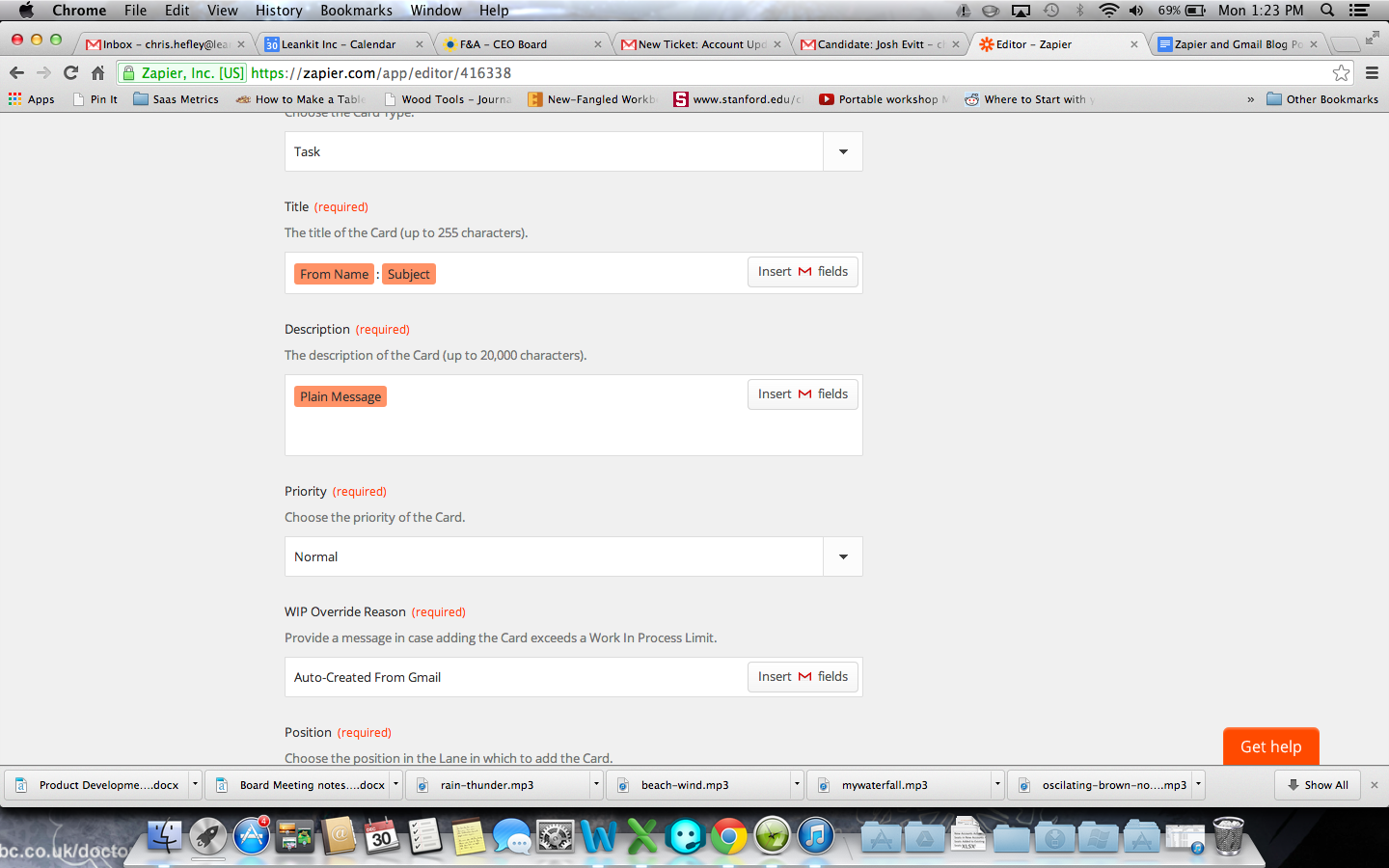
For the Card Title field, add the Gmail fields  “From Name” and “Subject”, and add “Plain Message” to the description field.

You can also add “ThreadURL” to the Description field if you’re using Basic or Team edition to provide a link back to the email. Or follow the instructions further down to add the link to the card header if you’re using Portfolio edition.

Selecting Card Fields

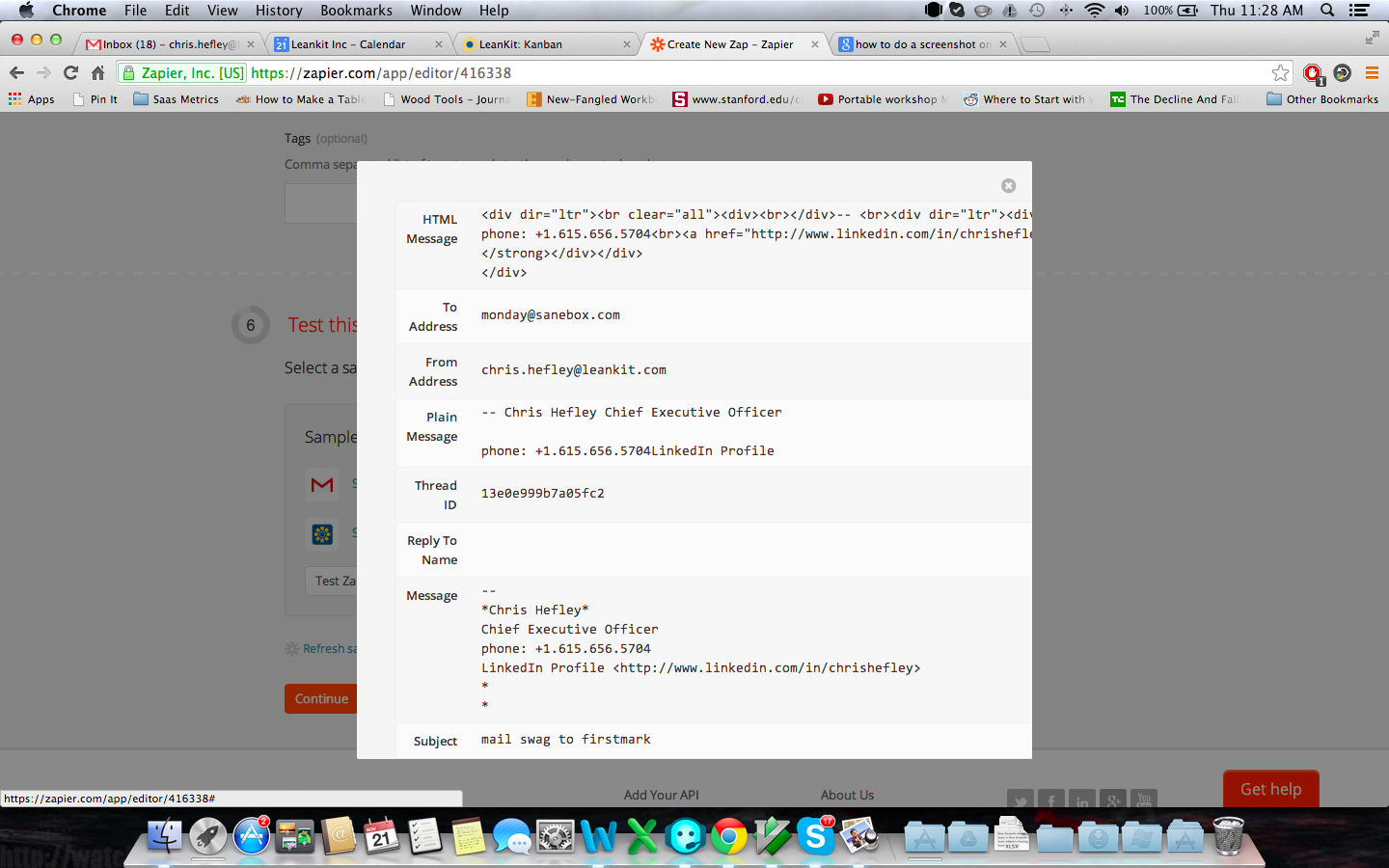
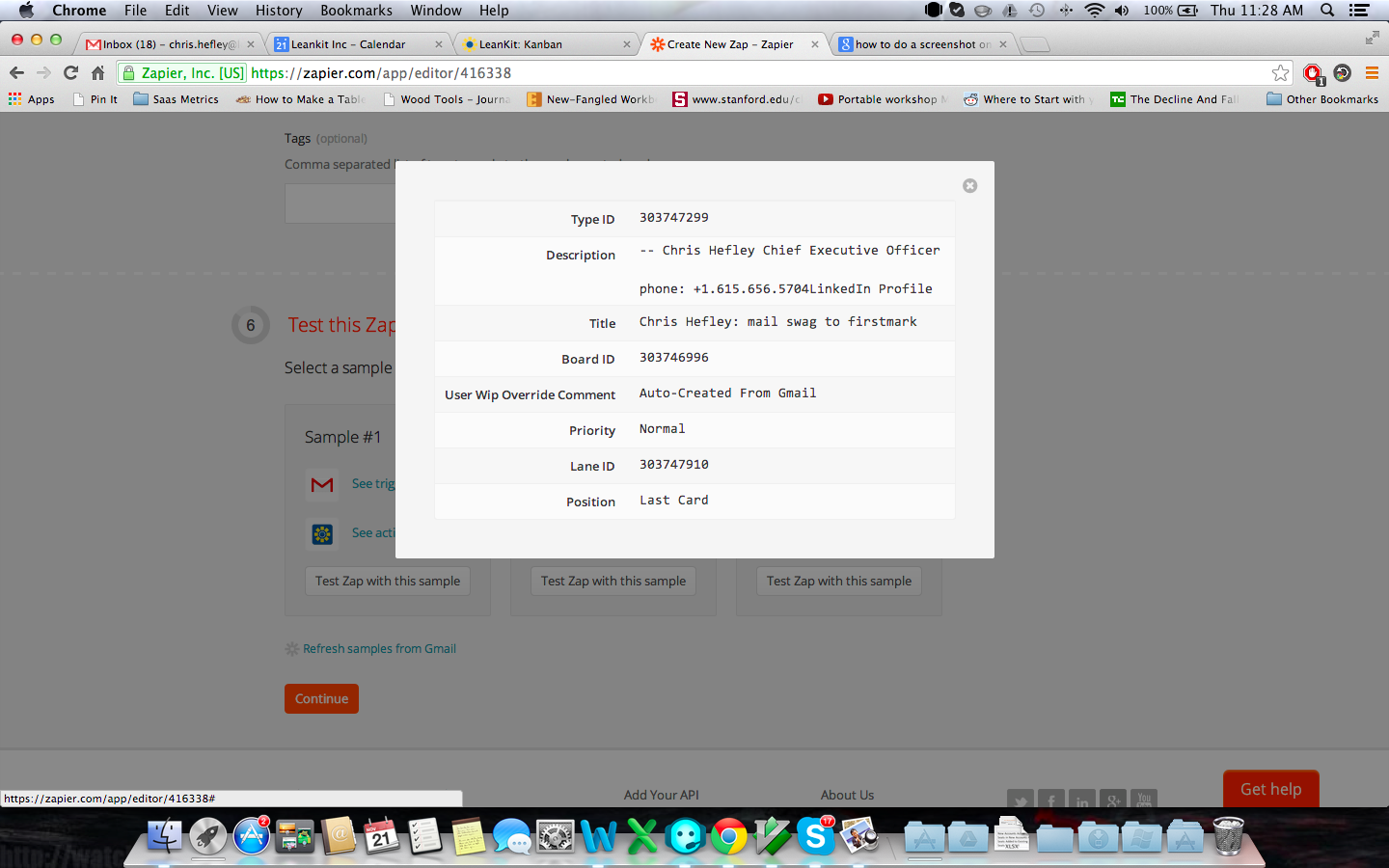
Test it like so:

Test Your Setup

Testing Your Setup 2

If you’re using LeanKit Portfolio Edition, you can use the “External Card ID” field. Add “ThreadID” to this field from the list of available Gmail fields.

Using the External Card ID Field

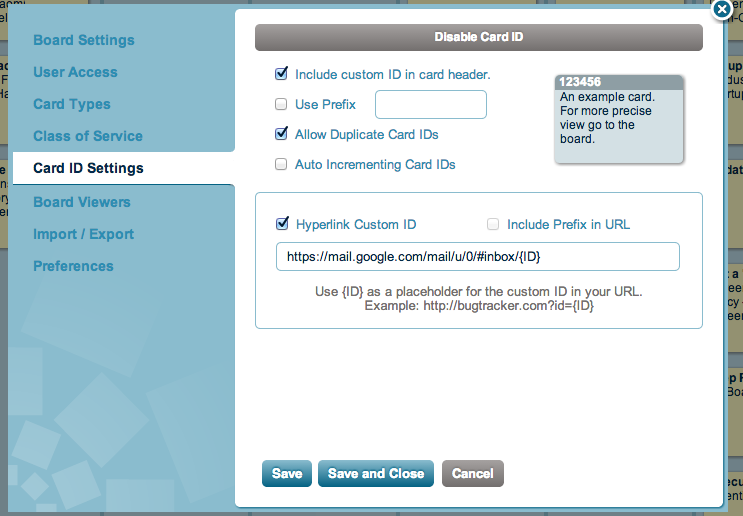
Open your LeanKit board in a new browser tab, and in the settings for your leankit board, enable Card ID, and set it up as shown below. The field is where the Gmail ThreadID will go.  (Check the gmail message url by opening an email in your browser and confirming the format of the url shown below for the email).

Enabling LeanKit Card ID

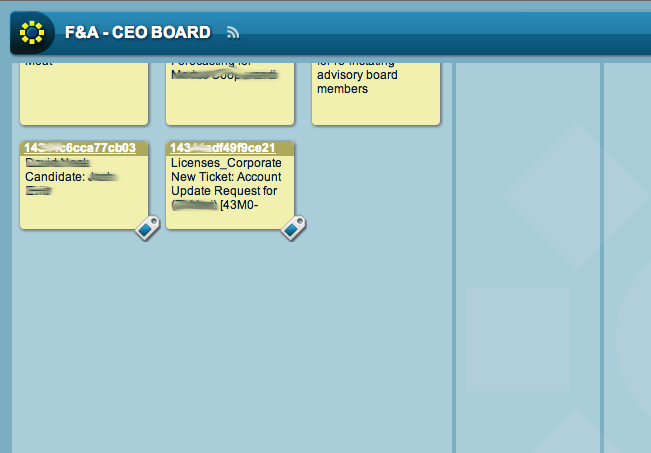
Now, the link to the original thread will appear in the header of the card, allowing you to quickly jump back there without opening the card to view the description.

Links on the LeanKit Task Cards

That should do it. You can test the Zap and turn it on in Zapier. Now, all you have to do is label a message in Gmail with “lk” and then archive it to get it out of your inbox. The next time the Zapier sync process runs, it will pick up that email and create a LeanKit card for it.

" "